First We need to Download a Downloader in your firestick. If you already have a downloader then scroll down to point 17 where it will guide you how to download our own custom app or Smarters pro on your firestick via downloader:
1 . From the Home Screen of your Device, hover over the Find Option.
2. Click Search.
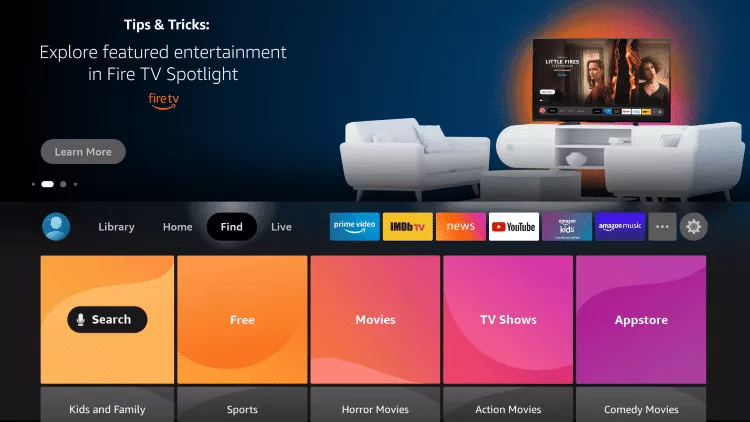
3. Search for and select Downloader by AFT News
4. Choose the Downloader app.
5. Click Download.
6. Wait for the app to install.
7. Once the app finishes installing click Open.
Now we need to Enable install from unknown sources and debugging mode from the settings
8. Return to the home screen and open Settings.
To do this, please
Go to > Settings > My Fire tv > Developer Options > Set both to ON
Or if you do not have the Developer options,
you can go for SETTINGS > MY FIRE TV > ABOUT > tap on ABOUT option simultaneously for 7 to 8 times frequently until it say no need you are a developer> Again in the Settings > MY FIRE TV > DEVELOPER OPTIONS > TURN BOTH ON
INSTALL UNKNOWN APPS
ADB DEBUGGING
9. Click My Fire TV.
10. Choose Developer options.
11. Click Install unknown apps.
12. Find the Downloader app and click it.
13. This will turn Unknown Sources to On for the Downloader app. This will enable side-loading on your device.
14. Launch Downloader.
15. Click Allow.
16. Click OK.
17. Type the following URL exactly as shown here: https://tinyurl.com/mediastarsxc or use the code: 688462 and click Go.
And for IPTV Smarters app URL: https://www.iptvsmarters.com/
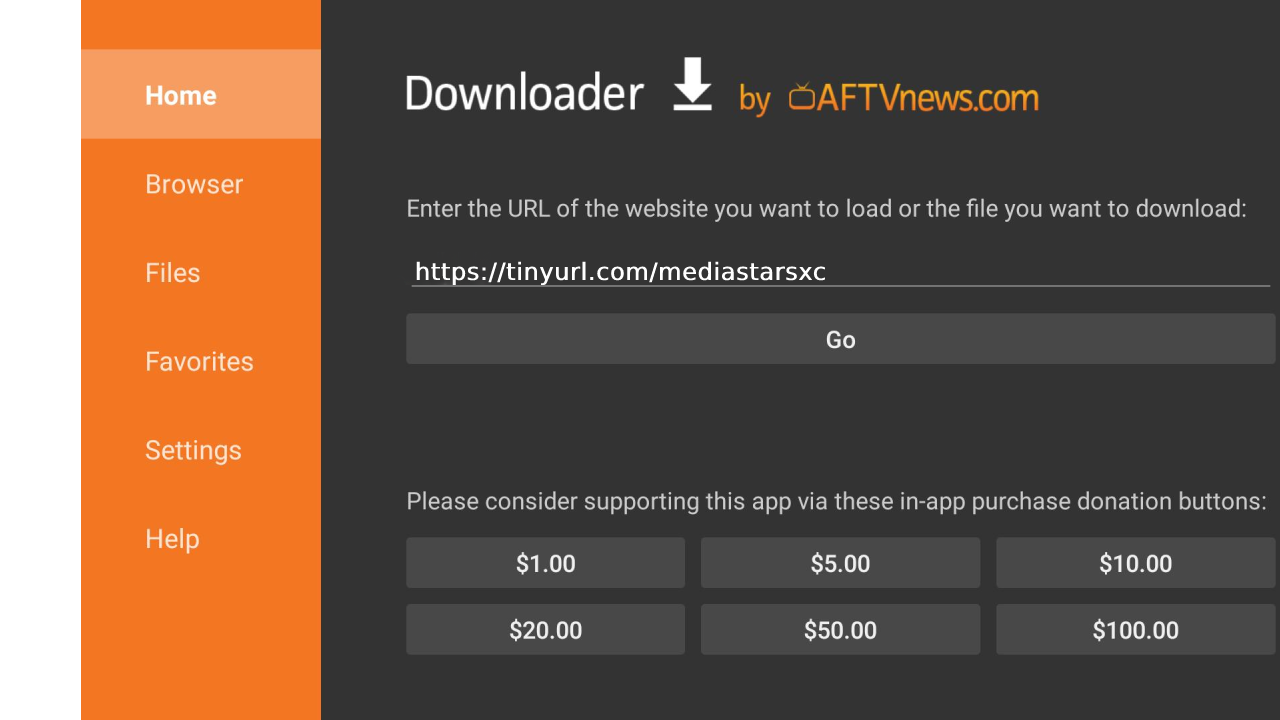
18. Wait for file to download.
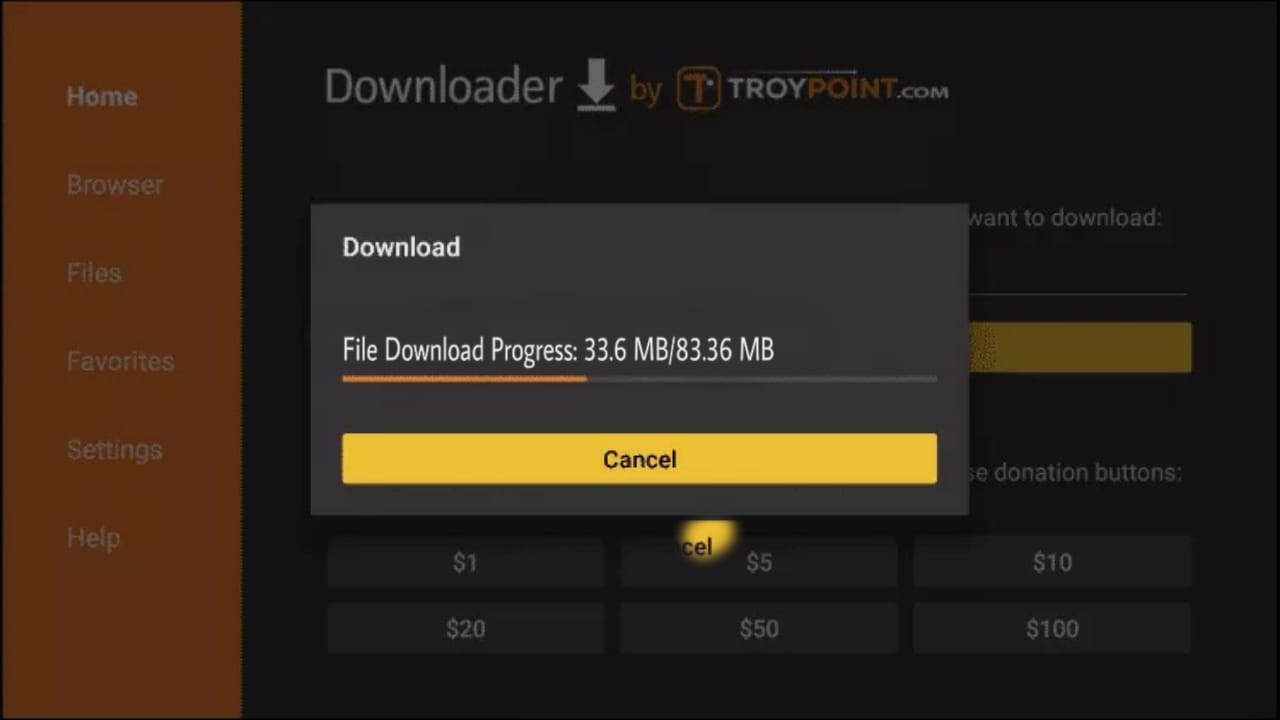
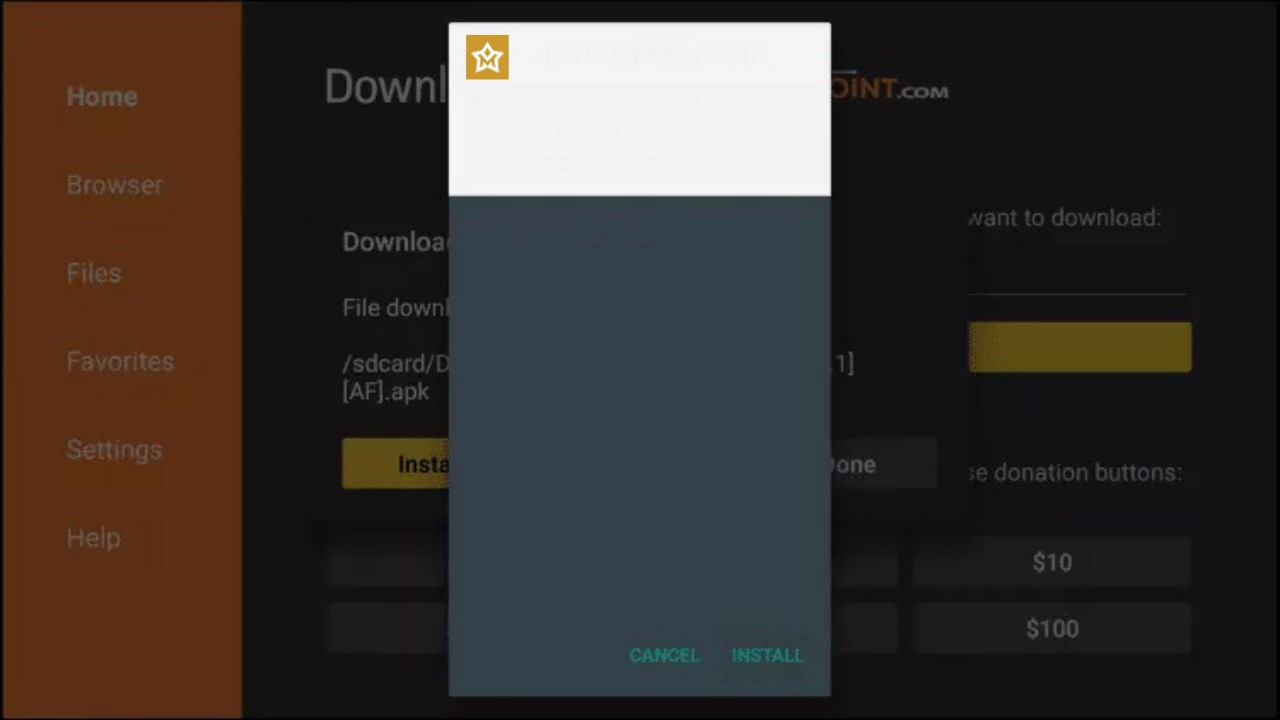
19. Click Install.
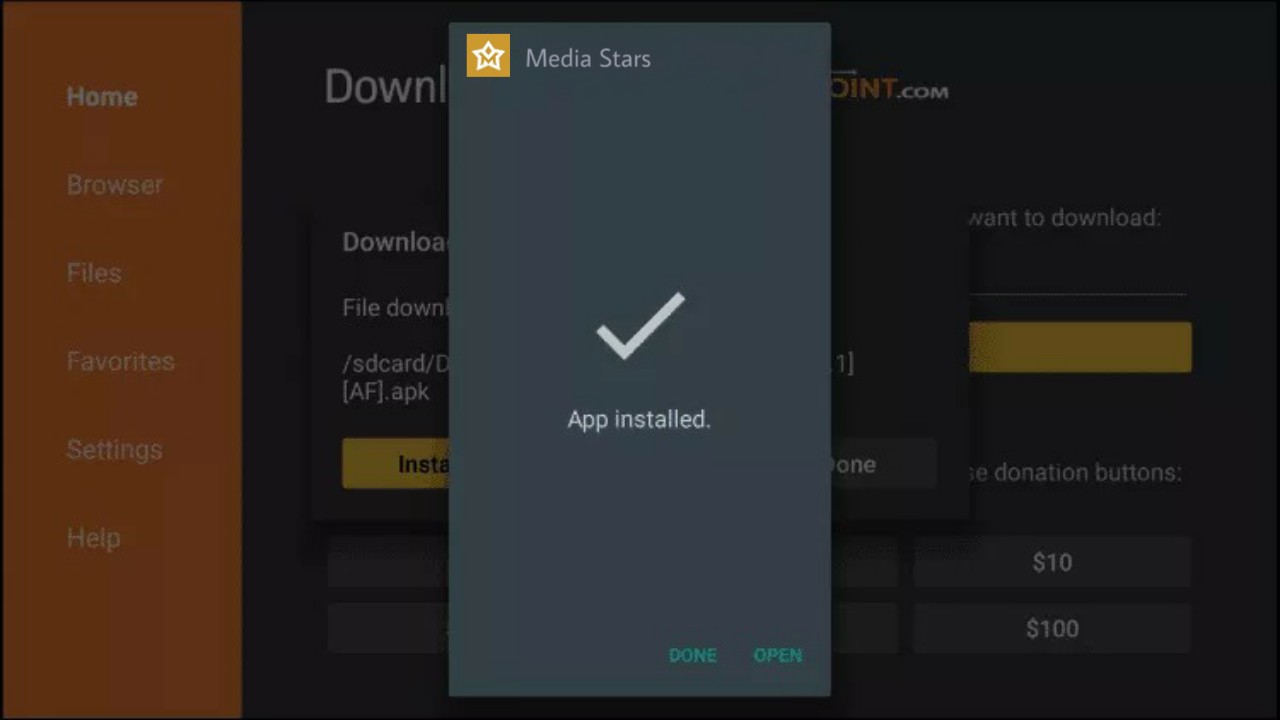
20. Click Done.
Navigate to the app store on your Smart TV. This could be called something like “LG Content Store,” “Samsung Smart Hub,” or “Google Play Store,” depending on your TV’s manufacturer and operating system.
1: Use the search function within the app store to search for the IPTV apps you want to download. In this case, search for “IPTV Smarters Pro/Player” and “IBO Player or IBO Player Pro.”
note: IPTV Smarters is a free to use app on the other hand IBO Player is a Paid app around 7 usd for a live time member ship. Depends on you which one you want to use.
How to setup IPTV Smarters Pro/Player on Smart Tvs
Make sure the smarters that you install it’s logo should match with the below image as there are many duplicate apps so install the right one is very important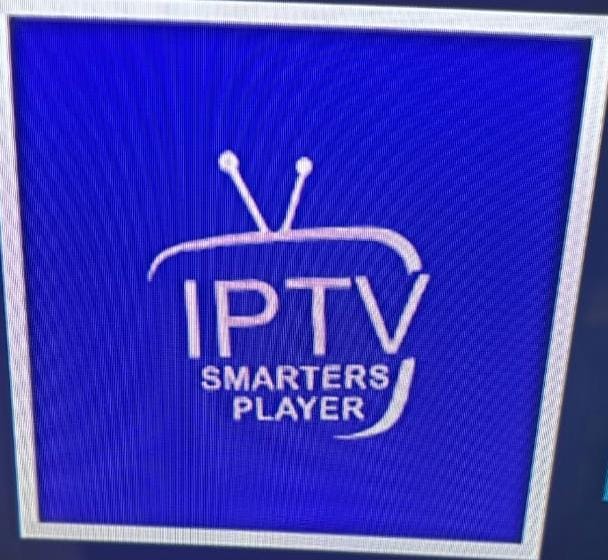
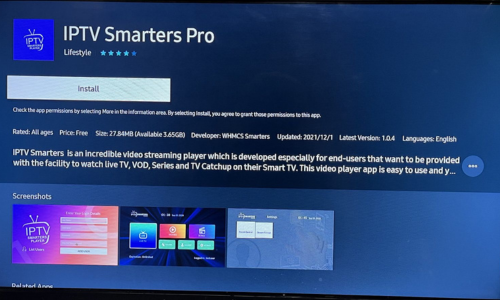
2: Once you install the IPTV Smarters pro on your Smart tv, Open the app and select Login with xtream codes API and use the details which will be provider from us after you sign up for a trial or subscription to login into the app. The details include Username, password, server URL, these details will sent to you via email or on your whatsApp number after your place an order for a free trial or a subscription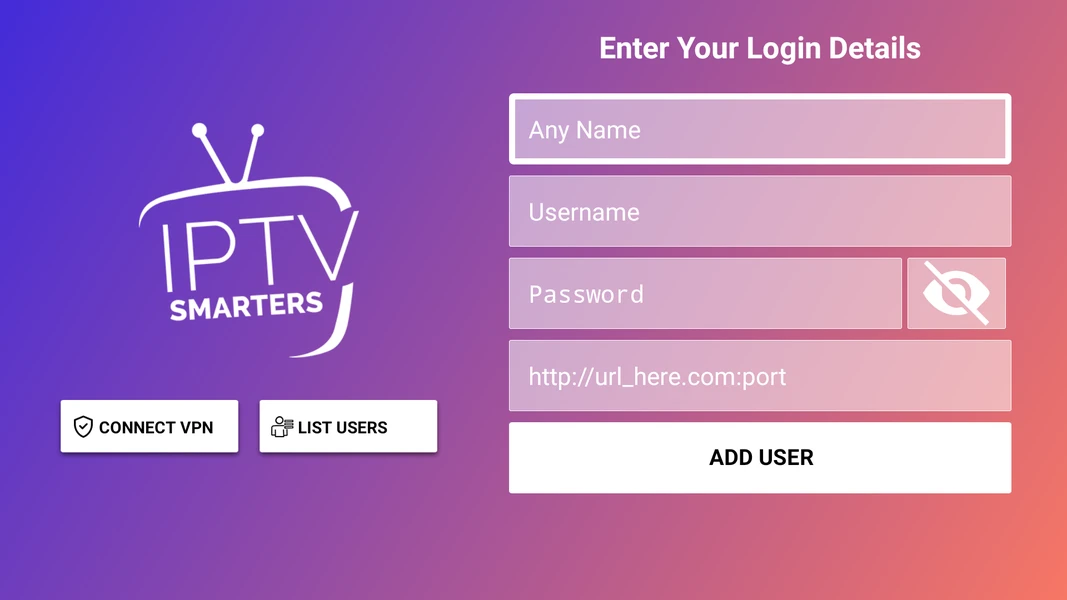
After Putting AnyName or Playlist name which is brit, Username, password, server URL. Click on Add user/Playlist and you are good to Go.
How to setup IBO Player:
Step 1: Search for the app called ibo player, ibo pro palyer or ibo player pro etc they are all the same apps with different names and install it.
Step 2: Once you install the IBO Player or IBO Player pro on your smart tv. Please Open the app and send us it’s mac address and device key which will be mention on the screen when you open the ibo player on your tv ( you can send us the mac address via email or via live chat or mention it during ordering) and we will upload the playlist from our side.
once the playlist is uploaded , all you need is to restart your tv and open the ibo player an you’re good to go. Everything will work perfectly
Step 1: Start by downloading the App Called SMARTERS PLAYER LITE from the App Store.
Step 2: Open the app once downloaded and click on “Add user” then click on “Log in with Xtream Codes API“.
Step 3: In this step, in the first box, select any name you want for example “BritFlix”. On the second and third boxes, enter the “Username” and the “Password” and the server URL which can also be found on your LOGIN DETAILS. which will be provided by us once you sign up for a trial or Subscription. Keep an eye on Gmail and also check the spam folder after placing your order for the login details.
Get You Subscription Or a Trial
Click Here
Now Click on “ADD USER” to proceed to the next section.
Step 4: Wait some seconds.
Now, your setup using your iPhone/iPad is complete, and you’re good to go! And if you face any issue while doing it all, let us know via live chat widget available on our website and our agents will guide you step by step how to setup IPTV Service on Apple Devices Like iPhone, iPad, Mac Book etc.
The easiest task is to set up BritFlix IPTV Service Service On Android Phones & Tablets.
To accomplish that, enter the media stars APK URL or Smarters Pro into your browser, such as Google Chrome or another browser of your Phone or Tablet. The only difference between these apps is there interface rest all the channels, movies and series will be same in both apps. Use the one which you like.
First Let’s start with our custom app which is Media Stars:
APK URL: https://tinyurl.com/mediastarsxc
Note: Make sure you have already allow download from unknown sources from your mobile setting and allow storage access to the app if it ask after Login.
Once you Install the app , Please Open the app and select Main as Panel and use the username & Password ( which will be provided by us after you sign up for a trial or subscription or you can get in touch with us via live chat and get your username & password directly.
Now Let’s Install IPTV Smarters Pro on your Android Phone and Tablets
APK URL: https://www.iptvsmarters.com/iptv-smarters-5.0.apk
To accomplish that, enter the APK LINK Of IPTV Smarters Pro into your browser, such as Google Chrome or another browser of your Phone or Tablet
Once you install the IPTV Smarters pro on your Phone or Tablet, Open the app and select Login with xtream codes API and use the details which will be provider from us after you sign up for a trial or subscription to login into the app. The details include Username, password, server URL, these details will sent to you via email or on your whatsApp number after your place an order for a free trial or a subscription
if you face any issue while doing it all, let us know via live chat widget available on our website and our agents will guide you step by step How to setup BritFlix IPTV Service Service On Android Phones & Tablets
When checking out, please make sure to provide the Mac address of your STB app or mag box. You can also send it to us via live chat, WhatsApp, or email. We will add it to our system as soon as you send it to us, and after that
Step One.
Once you have plugged in your Mag Box, please switch on and Go to settings > system settings > servers > portals.
Step Two.
Please type the following under portal 1 URL: (http://icewater.one:8880/c )and then press OK to save.
Note: Until you give us the mac address of your mag box or STB app, the portal URL won’t function.
Step Three.
Press the “Home” symbol on your remote control two times.
Then go to Restart / Reload Portal.
Now you should see an orange/yellow bar loading across the screen! This means you have successfully setup your device with our IPTV Subscription.